Table of Contents
By default, the WordPress Media Library is a free-for-all. Every user with upload permissions (Authors, Editors, Administrators) can see—and often edit—every single file in the library.
For a personal blog, this is fine. For an agency managing multiple clients, a membership site with private content, or a publication with dozens of contributors, it's a disaster waiting to happen.
Imagine a freelance writer accidentally deleting your site's logo because they thought it was a duplicate. Or a client seeing assets from another client's project. Or an intern downloading your proprietary design templates.
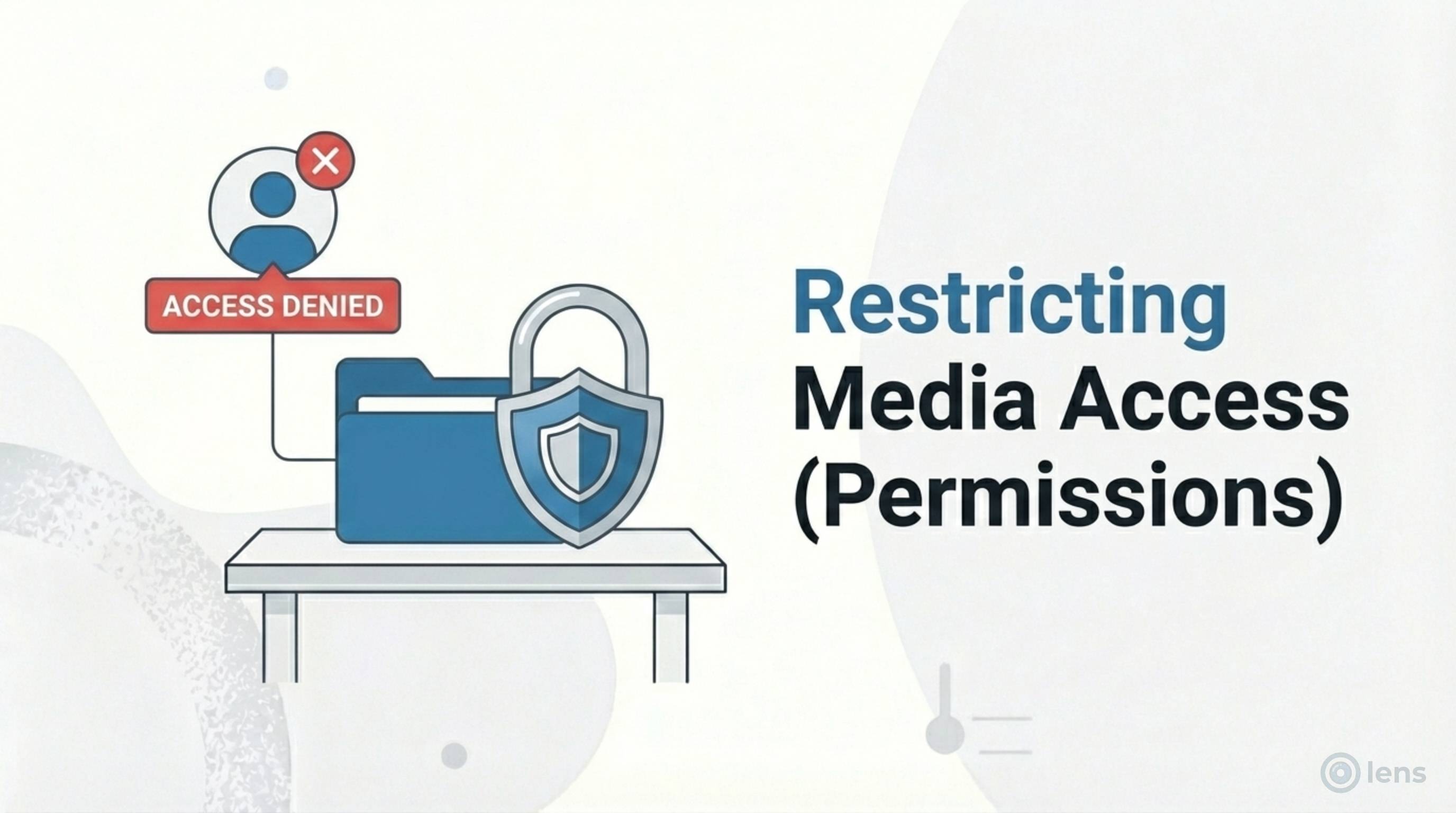
In this comprehensive guide, we'll explore how to lock down your WordPress media library folders using permissions—protecting your assets while still enabling seamless collaboration.
Why Restrict Media Library Access?
There are five critical use cases for restricting folder access:
1. Client Privacy (Agencies)
If you're an agency managing multiple client websites from one WordPress multisite or giving clients access to their own site, you need strict separation. Client A should never see Client B's brand assets, campaign materials, or internal documents.
2. Asset Protection
Critical site assets—your logo, favicon, background images used in CSS, header graphics—should be untouchable by anyone except administrators. A single accidental deletion can break your entire site's appearance.
3. Contributor Sandboxing
On multi-author blogs and publications, showing each author only their own uploads reduces confusion and prevents accidental interference. When an author searches for "header image," they should see their 12 headers, not 3,000 from other writers.
4. Premium Content Protection
Membership sites often have downloadable resources (PDFs, templates, videos) that should only be visible to users managing that content—not to every editor or contributor.
5. Compliance Requirements
Some industries (healthcare, legal, finance) require strict access controls for any uploaded documents. You may need to prove that only authorized personnel could access certain files.
WordPress Default Behavior: The Problem
Out of the box, WordPress lacks granular media permissions. Here's exactly what each role can do:
Default WordPress Media Capabilities
- Subscriber: Cannot upload or view the media library at all.
- Contributor: Cannot upload files. Can only see their own posts.
- Author: Can upload files. Has the
upload_filescapability. Can see ALL media in the library but can only delete their own uploads. - Editor: Full access to all media. Can upload, edit, and delete any file.
- Administrator: Full access plus plugin/theme management.
The critical gap: There is no native way to say "User A can only see Folder A" or "Authors can view the Stock Photos folder but not the Client Assets folder." WordPress treats the media library as one flat pool.
Role-Based Permissions
The most common restriction method is Role-Based. This applies rules to groups of users based on their WordPress role.
Typical Role-Based Setup
- Administrators: Can see and edit everything. Full control.
- Editors: Can see and edit everything. Trusted with all content.
- Authors: Can only see and edit their own uploads.
- Contributors: No media library access.
Limitations of Role-Based Permissions
This is a good start, but it's often too broad:
- What if you want all Authors to share a common "Stock Photos" folder while keeping their own uploads private?
- What if some Editors should only see marketing content, while others manage product photos?
- What if you have a "Templates" folder that everyone should access but nobody should modify?
For these scenarios, you need folder-level permissions.
Folder-Level Permissions
This is where advanced plugins like Lens Pro come in. Folder-level permissions allow you to right-click a specific folder and assign granular access rules.
Permission Types
You can set a folder to be:
- Public: Visible to everyone with media library access. Default behavior.
- Private: Visible only to you (the folder creator). Perfect for work-in-progress assets.
- Role-Restricted: Visible only to specific roles. Example: "Editors and Administrators only."
- User-Restricted: Visible only to specific named users. Example: "Only Sarah and David."
- Read-Only: Users can view and use files but cannot upload, edit, or delete them.
Inheritance
When you restrict a parent folder, all subfolders inherit those restrictions by default. If "Client Projects" is restricted to Administrators, then "Client Projects > Acme Corp > 2025 Campaign" is also restricted—unless you explicitly override it.
How to Set Up Folder Permissions in Lens
Lens makes this process intuitive:
Step 1: Navigate to Your Folder
In the WordPress Media Library, find the folder you want to restrict in the Lens sidebar.
Step 2: Open Folder Settings
Right-click the folder name. Select "Folder Settings" or "Permissions" from the context menu.
Step 3: Choose Your Restriction Type
- Select "Private" to make it visible only to you.
- Select "Limit access to..." to choose specific roles or users.
- Toggle "Read Only" if users should view but not modify.
Step 4: Save and Verify
Click Save. The folder will now show a lock icon indicating it's restricted. To verify, log in as a restricted user and confirm the folder is hidden from their view.
Common Permission Configurations
Here are battle-tested setups for common scenarios:
Multi-Author Blog
- Stock Photos: Public, Read-Only for Authors. Everyone can use them, nobody can delete them.
- Author folders: Each author gets a private folder only they can see.
- Brand Assets: Administrators only. Logos, headers, and site graphics.
Agency with Multiple Clients
- Internal: Private to agency staff. Templates, proposals, internal docs.
- Client A Folder: Restricted to Client A user accounts + agency admins.
- Client B Folder: Restricted to Client B user accounts + agency admins.
- Shared Resources: Read-only for all clients. Stock photos, brand guidelines.
WooCommerce Store
- Product Images: Editors and Shop Managers.
- Marketing Banners: Marketing team only (custom role).
- Invoices/Documents: Administrators only.
Security Best Practices
When setting up permissions, follow the principle of least privilege—give users only the access they absolutely need.
1. Create a "Global Assets" Folder
Store your site's critical assets (logos, icons, favicons, CSS background images) in a single folder. Set it to Read Only for everyone except Administrators. Users can insert these images into posts, but they physically cannot delete or modify them.
2. Enable Private Folders for Contributors
Give each frequent contributor their own private folder. This creates a sandbox where they can work without cluttering the main library or seeing others' work-in-progress files.
3. Audit Access Quarterly
Review who has access to what every few months. Remove access for departed team members. Tighten restrictions on folders that have become more sensitive.
4. Use Role-Based for Broad Rules, User-Based for Exceptions
Start with role-based permissions (faster to manage). Only use user-specific permissions when you need exceptions, like giving one specific Author access to a normally Editor-only folder.
5. Document Your Permission Structure
Keep a simple document listing your folder structure and who can access what. This helps onboard new team members and troubleshoot access issues.
6. Test as Different Users
After setting up permissions, log in as a test user with each role to verify they see exactly what they should—and nothing more.
Secure your assets today
Don't let accidental deletions ruin your day. Use Lens Pro to lock down your critical folders.
Get Lens Pro