Table of Contents
We've all been there. You need that one PDF whitepaper you uploaded six months ago. You type "whitepaper" into the WordPress search bar. No results.
You try "report". No results.
You spend the next 15 minutes scrolling through 2024's uploads until you find it. The file name? final-v3-edited.pdf.
This guide explains why WordPress search fails you and how to fix it with advanced filtering techniques that will save you hours every week.
The Limitations of Default Search
The native WordPress media search is incredibly basic. It primarily looks at the Title of the attachment. If you didn't rename your file before uploading (e.g., it's still called DSC_001.jpg), WordPress has almost no way to find it.
Here's what WordPress default search ignores:
- Alt Text: Even if you've carefully written "Blue running shoes Nike Air Max" as the alt text, searching "Nike" returns nothing.
- Captions: The text you added below the image? Invisible to search.
- Description: That detailed paragraph you wrote about the image? Ignored.
- File size: Can't find large files eating up your storage.
- Dimensions: Can't search for "images wider than 1920px."
- File type: The filter exists but it's buried and limited.
This becomes a serious problem when your library grows past a few hundred files. Studies show that content creators spend an average of 19 minutes per day searching for assets they already have. That's over 6 hours per month wasted on scrolling.
File Naming Best Practices
Before we talk about advanced search tools, let's address the root cause: poor file naming. If every image you upload is called IMG_4521.jpg, no search tool can save you.
The Ideal File Naming Convention
Rename your files before uploading them to WordPress. Follow this structure:
[category]-[descriptive-name]-[variant].extension
Examples:
product-nike-air-max-blue.jpgblog-header-seo-guide-2025.pngteam-sarah-thompson-headshot.jpgicon-shopping-cart-white.svg
Naming Rules to Follow
- Use hyphens, not underscores: Google treats hyphens as word separators.
blue-shoesis read as "blue shoes" whileblue_shoesmight be read as one word. - Lowercase only: Avoid case sensitivity issues across different servers.
- No special characters: Stick to letters, numbers, and hyphens.
- Be specific:
hero-image.jpgtells you nothing.homepage-hero-winter-sale-2025.jpgtells you everything. - Include dimensions for UI assets:
logo-lens-200x50.pnghelps you find the right size quickly.
Searching by Metadata
Even with perfect file names, you need a search tool that indexes all metadata. Here's what a robust media search should cover:
Text-Based Metadata
- File Name: The obvious one. Search "invoice" and find all invoice PDFs.
- Title: WordPress's attachment title field. Often auto-populated from the file name.
- Alt Text: Searching for "blue shoes" should find images with that alt text, even if the filename is
product-123.jpg. - Caption: The text displayed below images in posts.
- Description: The long-form text field, often used for internal notes or copyright information.
Technical Metadata (EXIF)
For photographers and agencies, EXIF data searching is invaluable:
- Camera model: Find all photos taken with your Canon EOS R5.
- Date taken: Not upload date—the actual date the photo was captured.
- GPS coordinates: Find photos from a specific location.
- Copyright: Identify licensed vs. owned content.
Note: Not all folder plugins index EXIF data. Lens Pro includes EXIF search capabilities for professional workflows.
Filtering by Type and Date
Sometimes you don't know the name, but you know what it is. "It was a video I uploaded last December." This is where filters shine.
Essential Filter Types
- File Type: Images, Videos, Audio, Documents, Spreadsheets, PDFs, Archives.
- Date Range: Uploaded this week, this month, or a custom range.
- File Size: Find files larger than 5MB (great for cleanup), or smaller than 100KB (finding compressed assets).
- Dimensions: Find images at least 1920px wide (for hero sections) or exactly 150x150 (for thumbnails).
- Author: In multi-author sites, find only uploads from a specific user.
- Folder: Combine with other filters—"Show me PDFs in the 'Contracts' folder from Q4 2024."
Combining Filters
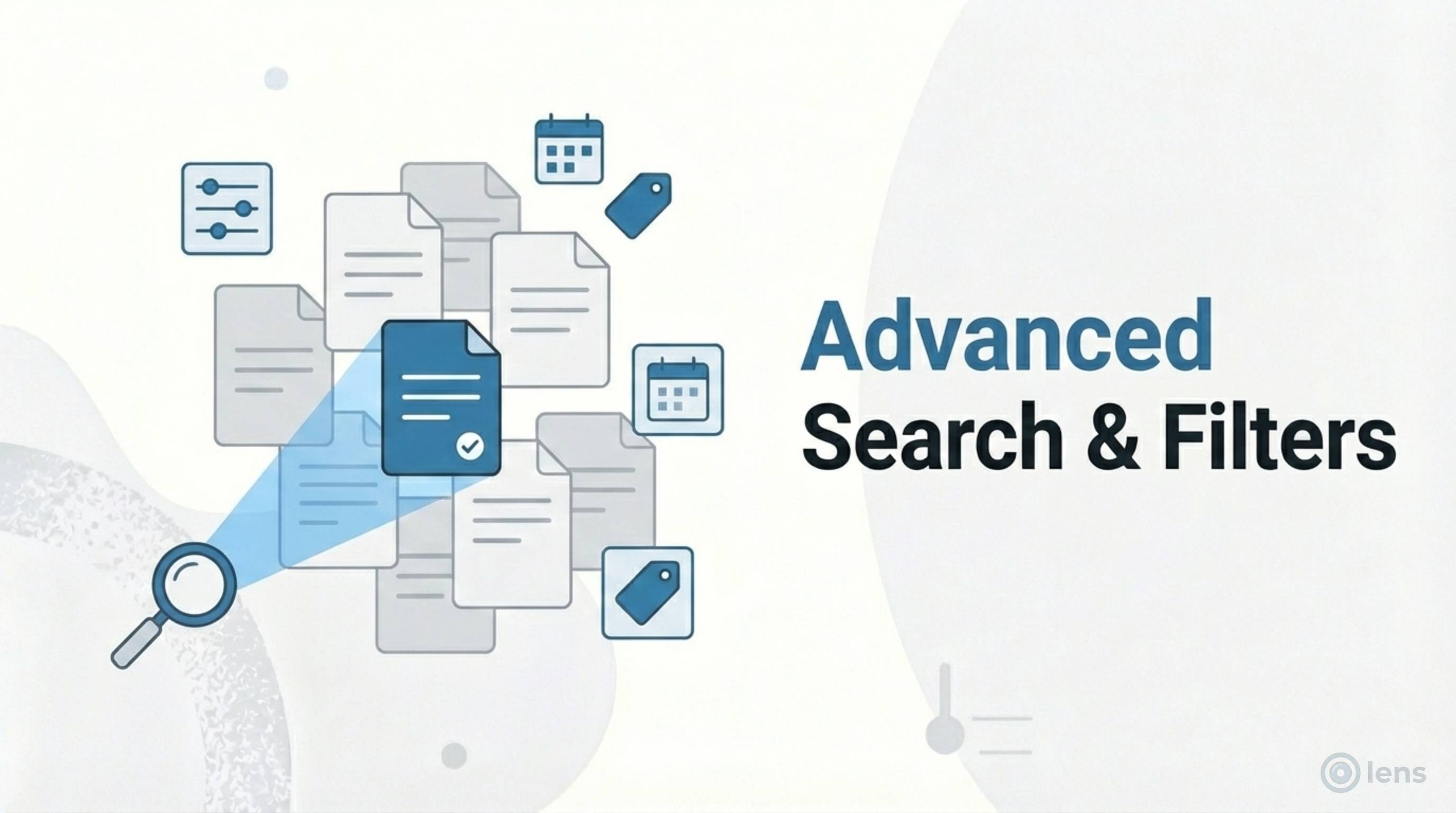
The real power comes from stacking filters. Instead of searching 10,000 files, you narrow down to 50:
- Filter by type: Images only (now 6,000 results)
- Filter by folder: Products (now 800 results)
- Filter by date: 2025 (now 120 results)
- Search: "summer" (now 15 results)
Finding your file now takes 10 seconds instead of 10 minutes.
How Lens Supercharges Search
Lens replaces the default search engine with instant search. As you type, results appear immediately—no page reloads, no waiting for the server.
What Lens Searches
- File Names
- Titles
- Alt Text
- Captions
- Descriptions
The Lens Filter Bar
Every filter mentioned above is accessible from a single toolbar. Click the filter icon and combine criteria: "Show me Images inside the 'Products' folder uploaded in 2025 that are larger than 1MB."
Keyboard Shortcuts
For power users, Lens supports keyboard navigation:
- / — Focus the search bar instantly
- ↑ ↓ — Navigate through results
- Enter — Open selected file
- Esc — Clear search and filters
Troubleshooting Search Issues
If search still isn't finding your files, check these common issues:
Problem: Search returns no results for files you know exist
- Check the file name: Is it something generic like
document.pdf? The title might not have been set. - Check your filters: Did you accidentally leave a filter active? Clear all filters and try again.
- Check the folder: Are you searching within a specific folder when the file is elsewhere?
Problem: Too many irrelevant results
- Be more specific: Instead of "logo", search "logo lens dark".
- Use filters: Narrow by file type first, then search.
- Use quotes: Some search tools support
"exact phrase"matching.
Problem: Search is slow
- Large libraries: If you have 50,000+ files, ensure your hosting has adequate resources.
- Plugin conflicts: Deactivate other media plugins temporarily to test.
- Database optimization: Run a database optimization plugin to clean up orphaned attachment data.
A Faster Workflow: The Search-First System
Stop relying on your memory. Implement this system and never lose a file again:
On Upload (30 seconds of effort = hours saved later)
- Rename before uploading: Use the naming convention above.
- Add Alt Text immediately: Describe what's in the image.
- Drag into a folder: Don't leave it in "Uncategorized."
- Add a description if needed: For internal notes, licensing info, or context.
When Searching (the fastest path to your file)
- Think folder first: If you know the category, navigate to that folder before searching.
- Filter by type: Searching for a PDF? Filter to Documents first.
- Filter by date: Remember roughly when you uploaded it? Narrow the date range.
- Then search: Now type your search term into a much smaller set of files.
This approach consistently finds files in under 15 seconds, even in libraries with 20,000+ items.
Stop losing your files
Lens makes your media library searchable by everything—filenames, alt text, and folders.
Get Lens Free