Table of Contents
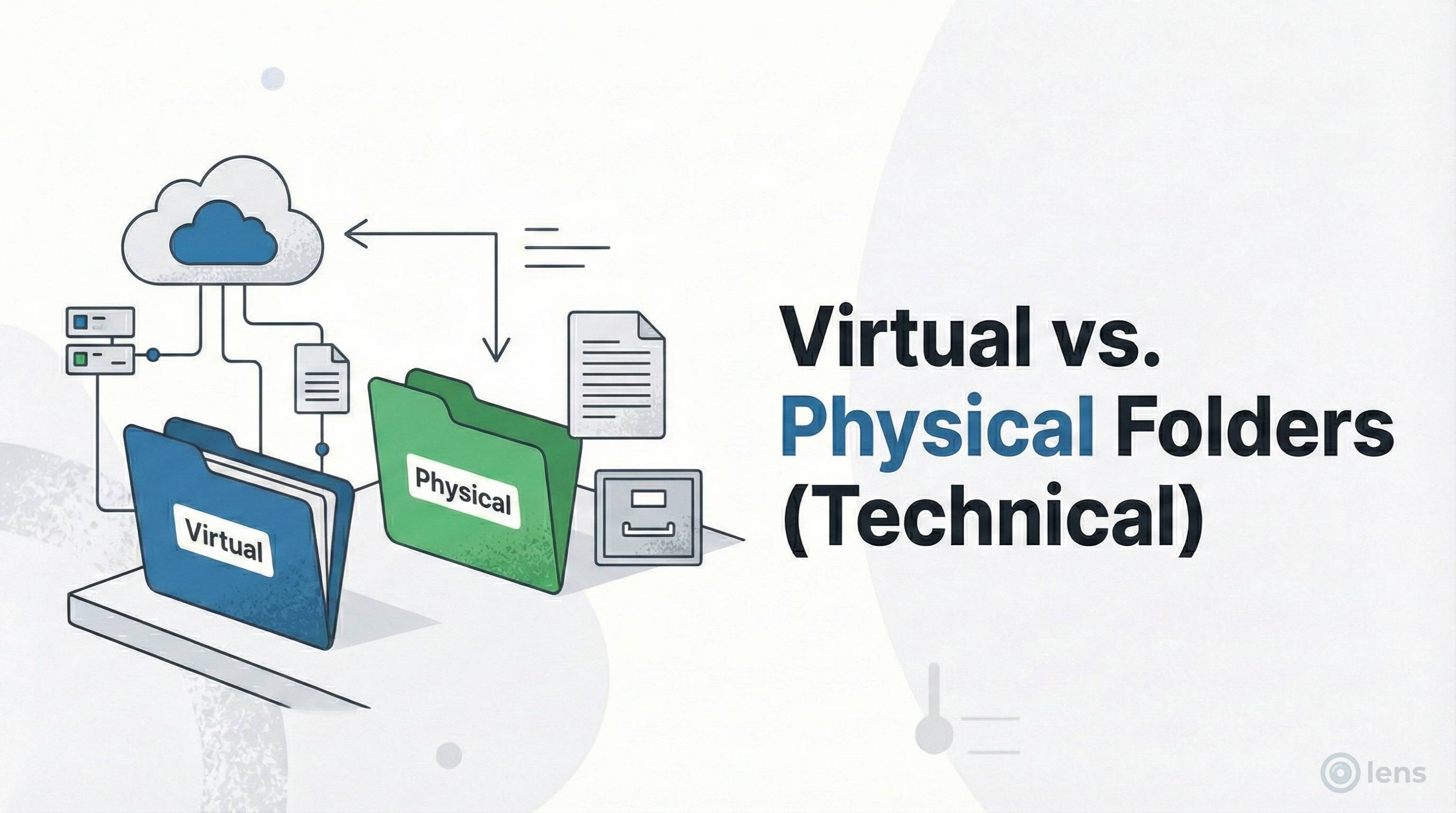
When you install a WordPress media folder plugin, you are making a fundamental architectural decision for your website, often without realizing it. You are choosing between Virtual Folders (database taxonomies) and Physical Folders (actual server paths).
It sounds like a nerdy technicality, but this choice determines whether your site is fragile or robust—whether you can safely uninstall the plugin or whether you're locked in forever. At Lens, we built our plugin exclusively on virtual architecture, and in this article, we'll explain exactly why that matters for your site.
How Each Approach Works
Before diving into pros and cons, let's understand what actually happens when you "move" a file in each system.
Physical Folders: What Really Happens
When you drag an image into a folder using a physical folder plugin:
- The plugin uses PHP's file system functions to physically move the file on your server
- The file path changes from
/wp-content/uploads/2025/01/logo.pngto something like/wp-content/uploads/logos/logo.png - The plugin updates the WordPress database to reflect the new path
- The plugin creates a 301 redirect from the old URL to the new URL
- All thumbnails are regenerated at the new location
That's a lot of operations—and a lot that can go wrong.
Virtual Folders: What Really Happens
When you drag an image into a folder using a virtual folder plugin like Lens:
- The plugin adds a taxonomy term relationship in the database
- That's it. The file stays exactly where it was.
The file at /wp-content/uploads/2025/01/logo.png remains at that exact location. Only a small database record changes to say "this attachment belongs to the 'Logos' folder taxonomy."
The Dangers of Physical Folders
Some plugins promise to "organize your actual files." This sounds appealing—your server's folder structure will match what you see in WordPress! But it creates a cascade of problems:
1. Broken Links Everywhere
When you move a file, its URL changes. Every reference to that file is now broken:
- Blog posts and pages: The image URLs embedded in your content now 404.
- Widgets and menus: Logo images, background images, icons—all broken.
- CSS and JavaScript: Any hardcoded asset paths fail.
- External links: Other sites linking to your images now hit dead ends.
- Social media: Pinterest pins, Facebook shares, tweet embeds—all show broken images.
- Email campaigns: Newsletters with your images now display broken image icons.
The plugin tries to fix this with 301 redirects, but redirects add latency, can fail silently, and don't work for all use cases (like CSS background images).
2. Backup and Restore Nightmares
WordPress backup plugins expect the standard /uploads/YYYY/MM/ structure. When you deviate from it:
- Incremental backups break: The plugin can't track what's new vs. what's moved.
- Restoration fails: Restoring to a server without the folder plugin installed leaves files in non-standard locations.
- Migration complexity: Moving to a new host becomes a custom project instead of a simple export/import.
3. Complete Vendor Lock-In
This is the most insidious problem. Once you've reorganized 10,000 files into physical folders, you cannot uninstall the plugin without:
- Manually moving every file back to standard WordPress folders
- Updating every database reference to point to the new paths
- Regenerating all thumbnails
- Fixing all 301 redirects
This can take days of work or require hiring a developer. You are effectively trapped with that plugin forever.
4. Performance Impact
Every file move operation requires:
- File system I/O (slow on shared hosting)
- Multiple database updates
- Thumbnail regeneration (CPU intensive)
- Redirect table updates
Move 1,000 files, and you're stressing your server for minutes. Virtual folders update 1,000 files in seconds because it's just database taxonomy assignments.
Why Virtual Folders Win
Virtual folders, used by top plugins like Lens, create an organizational layer on top of your files. The files stay exactly where WordPress put them (in the date-based folders), but the dashboard shows them in your custom folders.
1. Zero Risk of Broken Links
Since the URL never changes, your live site is never at risk. Every embed, every external link, every CSS reference continues working exactly as before. There's nothing to break.
2. 100% WordPress Compatible
Virtual folders use WordPress's native taxonomy system—the same system used for categories and tags. This means:
- Every theme works perfectly
- Every page builder (Elementor, Divi, Beaver Builder) works perfectly
- Every backup plugin works perfectly
- Every CDN works perfectly
- Every migration tool works perfectly
If it works with WordPress, it works with virtual folders.
3. Complete Freedom
You can uninstall Lens tomorrow, and your media library will simply revert to the standard WordPress list view. All your files remain exactly where they are. All your links continue working. You've lost nothing except the folder organization in the admin dashboard.
This freedom means you can try the plugin risk-free. Not happy? Uninstall and move on. No cleanup required.
4. Lightning-Fast Operations
Moving 1,000 files between virtual folders takes seconds because you're only updating lightweight database records. There's no file I/O, no thumbnail regeneration, no redirect management. Just simple, fast taxonomy updates.
SEO Implications: Myth vs. Reality
A common myth is that having keywords in your image file path (e.g., /uploads/best-pizza/pizza.jpg) provides a massive SEO boost. In 2025, this is largely false.
What Google Actually Says
According to Google's own documentation, image ranking factors are (in order of importance):
- Alt Text: The most important signal. Describe the image.
- File Name:
pizza-margherita.jpgbeatsIMG_001.jpg. - Page Context: What text surrounds the image?
- Image Quality: Is it high-resolution and properly sized?
- Page Speed: Does the image slow down the page?
Notice what's not on that list? Folder path. The URL path is such a minor signal that breaking your site architecture to optimize it is a terrible trade-off.
The Real SEO Danger of Physical Folders
Physical folders can actually hurt your SEO:
- Broken backlinks: External sites linking to your images now hit 404s or redirects, losing link equity.
- Redirect chains: Move a file twice, and you have a redirect chain that bleeds PageRank.
- Crawl budget waste: Googlebot spends time following redirects instead of crawling new content.
For a deeper dive on this, check out our guide on WordPress Image SEO.
Migrating from Physical to Virtual Folders
If you are currently using a physical folder plugin and want to switch to a safer virtual one like Lens, here's the process:
Step 1: Document Your Current Structure
Before changing anything, screenshot or note your folder structure. You'll want to recreate it virtually.
Step 2: Use the Plugin's Reset Feature
Most physical folder plugins have an "Uninstall" or "Reset" option that moves all files back to the default WordPress /uploads/YYYY/MM/ structure. Use it.
Warning: This will temporarily break your organization. Make sure you have that documentation from Step 1.
Step 3: Verify File Locations
Check that your files are now in standard WordPress locations and that all images display correctly on your site.
Step 4: Deactivate and Delete the Old Plugin
Once files are in standard locations, you can safely remove the physical folder plugin.
Step 5: Install Lens
Install the Lens plugin from WordPress.org.
Step 6: Recreate Your Structure Virtually
Use Lens to create your folder structure. You can either manually recreate it based on your documentation, or use the Auto-Organize feature to sort by date, type, or author as a starting point.
Step 7: Organize Your Files
Drag files into their appropriate virtual folders. Since this is just updating database records, it's fast and safe.
Quick Comparison
| Feature | Physical Folders | Virtual Folders |
|---|---|---|
| Files actually moved | Yes | No |
| URLs change | Yes (risky) | No (safe) |
| Can break links | Yes | No |
| Safe to uninstall | No (vendor lock-in) | Yes (complete freedom) |
| Speed of operations | Slow (file I/O) | Fast (database only) |
| Backup compatibility | Problematic | Perfect |
| SEO impact of path | Minimal positive, high risk | Neutral (safe) |
Conclusion
Physical folders offer a false sense of organization at the cost of your site's stability. They promise that your server will match your dashboard, but the price is broken links, vendor lock-in, backup complications, and performance overhead.
For 99% of WordPress users, Virtual Folders are the correct choice. They give you the clean, organized workflow you crave without the nightmare of broken links and database errors.
Keep your server standard. Keep your dashboard custom. That's the philosophy behind Lens, and it's why our users sleep soundly knowing their sites won't break if they reorganize their media library.
Organize safely with Lens
Lens uses 100% virtual folders, ensuring your site never breaks—even if you uninstall us.
Download Lens Free